Lively Wallpaper vs Wallpaper Engine — Full Comparison (2026)
Wallpaper Engine has been the go-to animated wallpaper app for years — and for good reason. But Lively Wallpaper has been gaining attention as a free, open-source alternative. So the question is: does it actually hold up?
In this guide we will compare the two applications, and which one is better in 2026.
Quick Table Overview
| Application | Cost | Wallpaper Support | Platform Support | Open Source | Steam Workshop | Wallpaper Editor |
|---|---|---|---|---|---|---|
| Wallpaper Engine | $4.99 | Videos, Shaders, Applications | Windows, and Android | No | Yes | Yes |
| Lively Wallpaper | Free | Videos, Shaders, Applications | Windows | Yes | No | No |
Lively Wallpaper
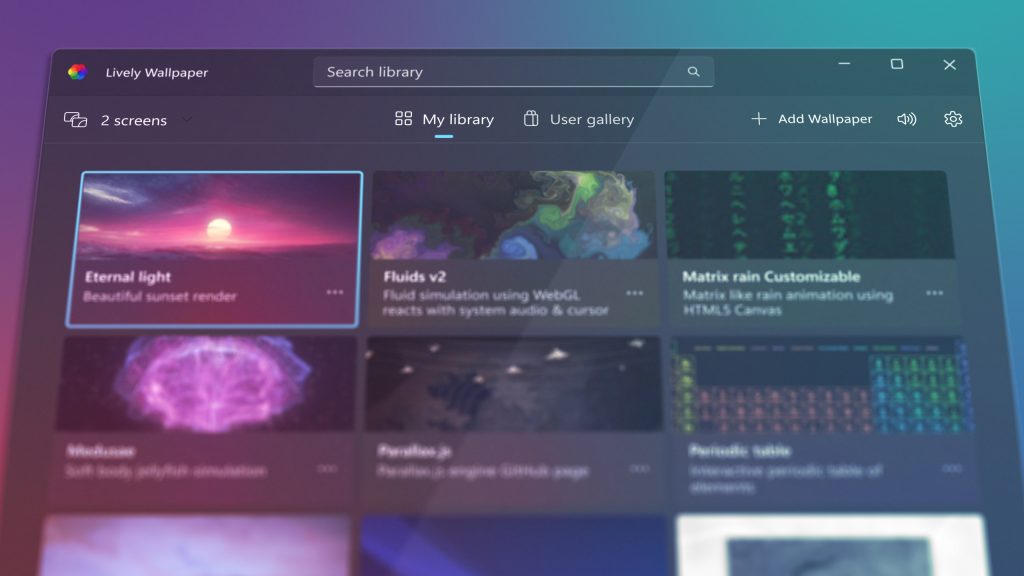
Lively Wallpaper is a free Wallpaper Engine alternative. It’s an open source application first released publicly on December 7th 2019 by Dani John on GitHub, and it’s now sitting at over 18.8K stars.
The application supports:
- Videos, and GIFs
- Shaders
- Web based wallpapers, and
- Apps/Games made with Unity or Godot game engines
This vast support across different types of animated, and interactive wallpapers gives it a huge shot at competing with Wallpaper Engine — all for free.
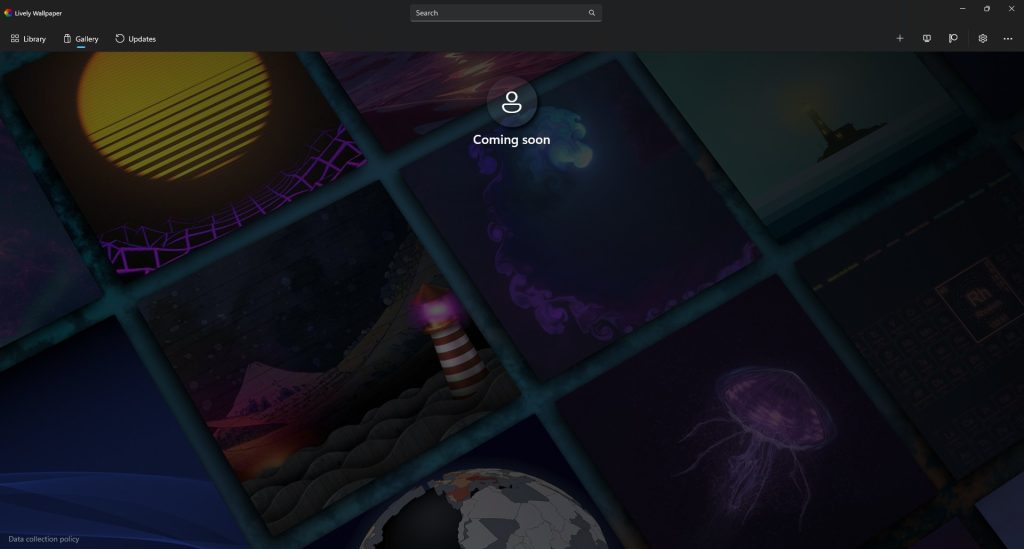
The biggest difference between the two is the lack of a central place to get wallpapers.
Wallpaper Engine solves this by being a part of the Steam ecosystem, meaning the Steam Workshop is the go-to place for wallpapers, allowing millions of Steam users to upload, and share wallpapers with others.
The gallery tab in Lively is presumably that go-to place, however, as of early May 2026, that tab just states “Coming Soon”. This means that you have to either:
- Search for, and download wallpapers manually from external sources, or
- Manually download wallpapers from the Steam Workshop via sites like this one
Whichever way, it’s extra manual steps you otherwise wouldn’t have to do with Wallpaper Engine, and that can be a big downside for people who enjoy efficiency, and speed.
Pros & Cons
Lively has some great pros, but unfortunately some disappointing cons too.
Pros:
- Completely free and open source
- Supports everything Wallpaper Engine does out of the box
- Optimized, and works smoothly
- Intuitive, and easy way to import every type of wallpaper
Cons:
- Currently, no central place for wallpapers
- You manually have to download videos, or apps from external sources
- The in-built URL download option doesn’t work if the site blocks your request (which is often)
- No Android, Mac, or iOS support
Regardless, Lively Wallpaper is best for people who cannot afford Wallpaper Engine or prefer open source software. The app just works, but getting wallpapers to feed into it can be an extra hassle for a lot of people.
Wallpaper Engine

Wallpaper Engine is a proprietary application that was originally released on Steam back in October 2016. It works on the same premise as Lively — it allows you to set animated wallpapers on your desktop.
However, the app is not free — it costs $4.99, but it can reach as low as $3.49 on sale.
The support for wallpapers is the same:
- Videos
- Shaders, and
- Web based applications
Wallpaper Engine also supports Android with its companion app, allowing you to send whatever wallpaper you subscribe to on Steam straight to your phone. There is a whole set of mobile based wallpapers to choose from on the Workshop.
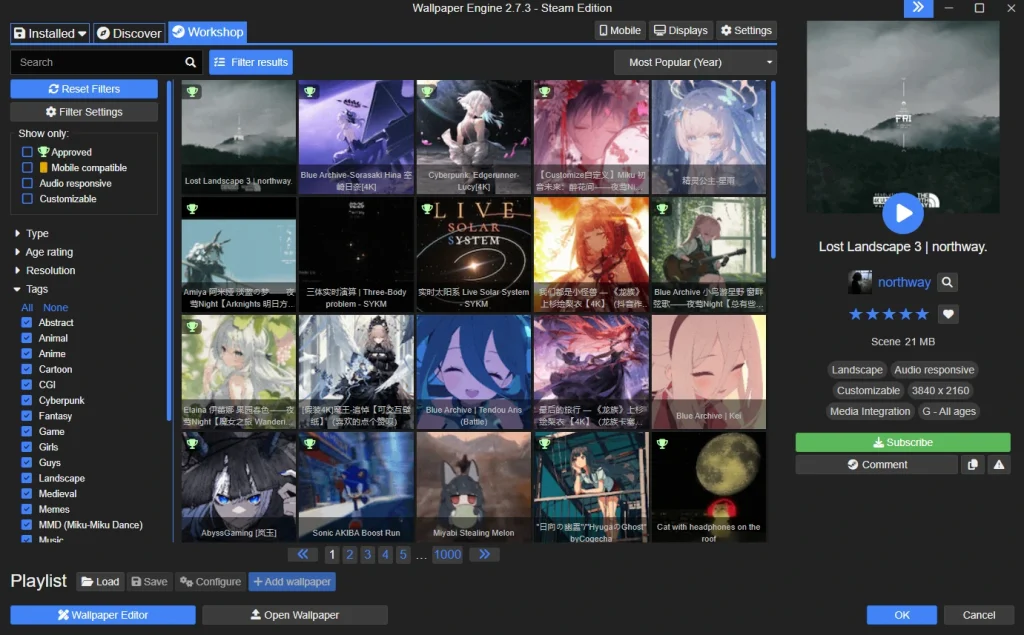
Wallpaper Engine’s biggest advantage is the Steam Workshop, which currently hosts over 2.8 million wallpapers created for the application, making it the most popular live wallpaper application.
The application also has an in-built editor, letting you create wallpapers from scratch by adding images, videos, particles, and more — either in 2D or 3D space.
To read more about the app, read the post “What is Wallpaper Engine?” for more in-depth details.
Pros & Cons
Wallpaper Engine is clearly more fleshed out, and had a bigger team behind it, yet it still has some cons.
Pros:
- Integration with Steam Workshop with over 2.8 million wallpapers
- In-built editor allowing anyone to create simple or complex wallpapers for free
- Well optimized, and doesn’t drain resources when not necessary
- Intuitive UI, and dozens of filters for wallpapers
- Supports Windows, and Android
Cons:
- Not free — costs $4.99
- Not open source
- Does not support Mac, or iOS
- You manually have to move wallpapers to your phone, or send them through the desktop app first
Wallpaper Engine is best for anyone who has some spare change to throw at it, and you won’t be disappointed with over millions of wallpapers to choose from.
Final Verdict
The battle between Lively Wallpaper vs Wallpaper Engine is imbalanced — one is ran by one person, while the other has a team, and more years spent in the oven.
If Lively can fix the issue of having no central place to get wallpapers, it will definitely earn its spot as the top choice for animated wallpapers, but for now Wallpaper Engine wins by a mile.
If you already own Wallpaper Engine, you can read my “Best 20 Makima Wallpapers” or “Top 20 League of Legends Wallpapers” if you enjoy games over anime.
FAQ
1. What is The Best Free Wallpaper Engine Alternative?
Lively Wallpaper is the best Windows only replacement for Wallpaper Engine. Lively is free of charge and open source, meaning anyone can contribute to the code, or download the app. It supports every wallpaper type Wallpaper Engine does, too.
2. Is Lively Wallpaper Safe?
Yes, Lively Wallpaper is an open source application, and the code has been inspected by thousands of programmers — which you can do as well. The real safety problem are wallpapers from untrusted sources, especially ones that are web applications, and not just looping videos.
3. Does Lively Wallpaper Slow Down PC?
No, Lively Wallpaper is an optimized wallpaper app for Windows with many settings to tweak to get the most performance out of the application. The real culprit are heavy wallpapers that put strain on your PC hardware — mostly your GPU, so you should pick wallpapers adequate for your hardware.
4. How to Use Lively Wallpaper?
To use Lively Wallpaper you first have to download it from GitHub or the Microsoft Store. When you install it, you can enable one of the 12 wallpapers it comes with, or click the plus button in the top right corner to add new wallpapers in supported formats.